Try EdbMails Free →
Office 365 Migration:
Everything You Need to Know
Planning an Office 365 migration? Whether you’re moving between tenants, migrating from Exchange Server, or consolidating after an acquisition — this guide covers planning, execution, and real-world lessons learned.
Moving to Microsoft 365 is one of the most impactful infrastructure decisions an IT team can make. But the path from “we’ve decided to migrate” to “everyone is up and running on the new tenant” is rarely smooth without the right preparation.
This guide walks you through every stage of an Office 365 migration — from initial planning to post-migration verification — and highlights the tools and techniques that separate painful migrations from predictable ones.
▲ A complete overview of the Office 365 migration process
What Is Office 365 Migration?
Office 365 migration is the process of moving organizational data — mailboxes, public folders, calendars, contacts, SharePoint sites, OneDrive, and Microsoft Teams — into Microsoft 365, between two tenants, or from an on-premises Exchange server to the cloud.
Tenant-to-Tenant
Moving mailboxes between two Microsoft 365 tenants — typical after mergers or acquisitions.
Exchange to O365
Migrating from on-premises Exchange Server (2010–2019) to Exchange Online.
PST Import
Bulk importing legacy PST archive files directly into Office 365 mailboxes.
IMAP / G Suite
Moving from Gmail, Zimbra, Zoho, or any IMAP-compatible platform to Microsoft 365.
Tenant-to-tenant migrations are the most complex — they involve identity management, DNS changes, and cross-tenant permission challenges. Plan for at least 2–4 weeks of prerequisite work before your first wave.
Migration Types: Which One Is Right for You?
Understanding which migration method fits your organization is the first decision you need to make.
| Migration Type | Best For | Downtime Risk | Complexity |
|---|---|---|---|
| Cutover Migration | Small orgs (<150 users) | Low | Low |
| Staged Migration | Large orgs, phased rollout | Minimal | Medium |
| Hybrid Migration | Orgs keeping some on-prem | None | High |
| Tenant-to-Tenant | Mergers & acquisitions | None | Very High |
| IMAP Migration | Non-Exchange mail servers | Low | Low–Medium |

▲ Tenant-to-tenant migration — most common in post-acquisition projects
Planning Your Migration: The Non-Negotiables
Inventory Everything First
Document every mailbox, shared mailbox, distribution list, public folder, Teams channel, SharePoint site, and OneDrive account. Know exactly what you’re moving before you start moving anything.
Resolve Identity Conflicts Early
If you’re doing a tenant-to-tenant migration, identity mapping is where most projects go wrong. Identify naming conflicts — duplicate display names or email addresses — and resolve them before migration scripts run, not during.
Changing a user’s UPN invalidates cached Outlook mobile credentials, breaks Power Automate flows, and disrupts service accounts. Map all dependencies before you rename anything.
Run a Pilot Before the Full Migration
Pick 8–12 users from across departments — IT staff, executives, sales, support — and migrate them end-to-end first. A good pilot surfaces 80% of your migration issues before they affect everyone else.
What Gets Migrated? Full Checklist

▲ Office 365 migration covers far more than just email
Mailboxes
Emails, folders, calendar events, contacts, tasks, notes — all with metadata preserved.
Public Folders
Full folder hierarchy, mail-enabled folders, and permissions migrated intact.
Archive Mailboxes
In-Place Archives move with the primary mailbox or as a separate migration job.
Shared Mailboxes
Full item migration with automatic source-to-target mapping included.
SharePoint Sites
Documents, lists, files, and folder structures across all site collections.
OneDrive
User files, shared documents, and folder structure migrated to target OneDrive.
Step-by-Step Migration with EdbMails
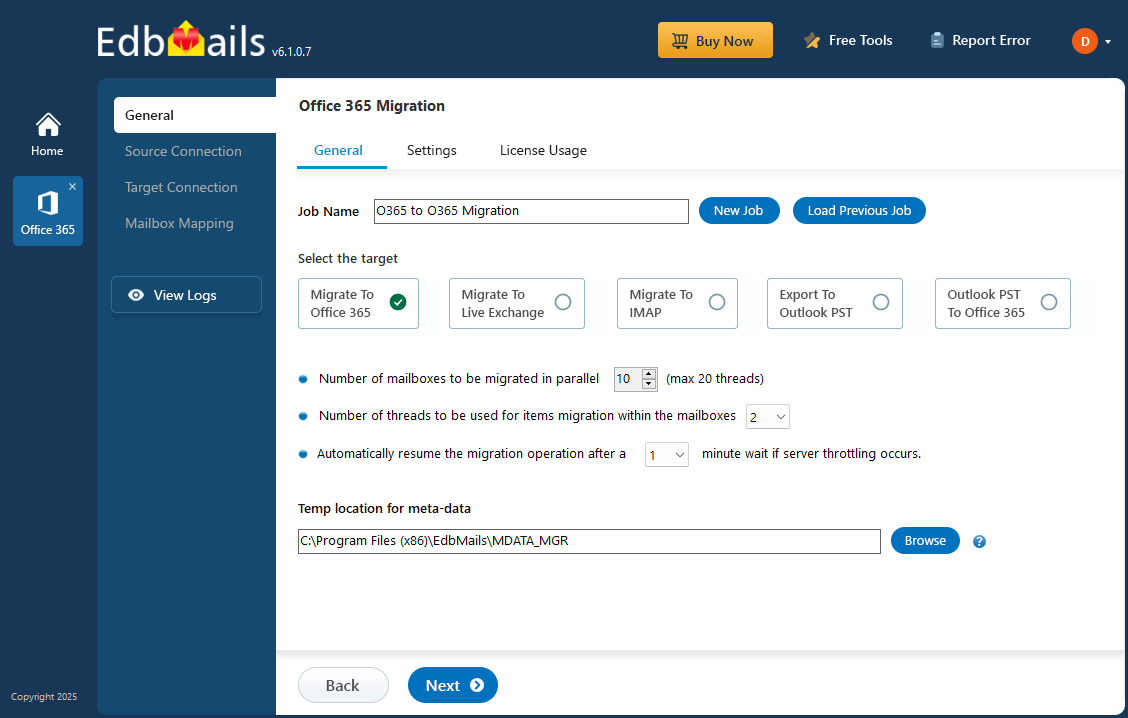
Here is how a professional Office 365 migration runs from start to finish using EdbMails — no PowerShell required at any stage.
Always take a snapshot of the source environment before each migration wave. If anything goes wrong, you can restore to a known good state without re-running an 18-hour migration from scratch.
Ready to Start Your Migration?
EdbMails handles mailboxes, public folders, SharePoint, OneDrive, and Teams — all in one tool. Try free with up to 30 items per folder, no credit card required.
Top 5 Migration Mistakes to Avoid
1. Starting Identity Planning Too Late
Naming collisions between tenants are painful to fix mid-migration. Build your name-collision matrix in Week 1 and get sign-off on the naming convention before writing any scripts.
2. Not Warning Users About Teams Chat History
Teams chat history cannot be fully migrated between tenants. Microsoft’s data model does not expose the necessary APIs. Warn users at least 2 weeks before their cutover date.
Export critical Teams chats to PDF for compliance before migration. Communicate this limitation clearly — discovering it after cutover damages user trust in the entire project.
3. Ignoring OneDrive Sharing Links
Every sharing link sent from OneDrive becomes a dead link after migration. Run a sharing-link extraction script 48 hours before each wave and email each user a personal re-share report.
4. Touching the Source During a Migration Window
Never run admin commands or cleanup scripts against the source mailbox while the migration tool is running. Changing item counts mid-run can cause mass deletions to be replicated to the target.
5. Skipping the Pilot
A pilot with 10–12 representative users will surface most migration issues before they affect hundreds of people. This is not optional — it is the most valuable diagnostic step in the project.
Why EdbMails? Feature Comparison
| Feature | EdbMails | Microsoft Native | Other Tools |
|---|---|---|---|
| No PowerShell required | ✓ Yes | ✗ No | Varies |
| Concurrent migration (up to 20x) | ✓ Yes | ✗ Limited | Some |
| Incremental / delta migration | ✓ Automatic | ✗ Manual | Some |
| Auto mailbox creation & licensing | ✓ Yes | ✗ Manual | Some |
| All workloads in one tool | ✓ Yes | ✗ Separate | Varies |
| Pricing | $299 / 100 mailboxes | Included | Per-user/month |
| 24/7 free support | ✓ Yes | ✗ Limited | Paid plans |
EdbMails delivered exactly what it promised. I was able to transfer over 200 mailboxes from Zimbra to Office 365. Quick assistance, good value, and reasonable pricing. Absolutely nothing to fret.
I successfully migrated over 100 GB of data across 100 mailboxes concurrently. Combined with the auto-mapping feature, EdbMails is my top choice for Microsoft 365 migrations.
Simple, Transparent Pricing
Unlike subscription tools that charge monthly per user, EdbMails uses a one-time per-mailbox model. You only pay for the mailboxes you actually migrate — no recurring fees.
Office 365 Migration License
- ✓ Unlimited migration runs per license
- ✓ Mailboxes, public folders, archives, shared mailboxes
- ✓ Concurrent migration of up to 20 mailboxes
- ✓ Incremental (delta) migration included
- ✓ Auto mailbox creation and license assignment
- ✓ 24/7 free technical support
- ✓ Lifetime license — no subscription
Microsoft 365
Tenant-to-Tenant
Exchange Online
SharePoint Migration
EdbMails
IT Pro
OneDrive
Microsoft Teams
Migrate Smarter, Not Harder
EdbMails handles the complexity so your team doesn’t have to. From 10 mailboxes to 10,000 — fast, secure, and duplicate-free.
Powered by EdbMails Office 365 Migration Software
© 2026 EdbMails · Shifttocloud Inc. · Rehoboth Beach, DE, United States