Organizations today rely heavily on cloud technologies to improve productivity, strengthen security, and enable seamless collaboration across teams. As hybrid work environments become increasingly common, businesses need a reliable platform that allows employees to access emails, documents, calendars, and collaboration tools from virtually anywhere. This growing demand has made Office 365 Data Migration a critical step in many digital transformation initiatives.
Whether an organization is moving from an on-premises Microsoft Exchange Server, a hosted Exchange environment, an IMAP-based email service, PST files, or another cloud platform, planning the migration carefully is essential. A well-executed migration ensures that business-critical data is transferred securely while minimizing downtime, preserving mailbox integrity, and reducing disruption for end users.
Although Microsoft provides several native migration methods, choosing the right Office 365 Migration Tool can significantly simplify the process, especially for organizations managing large mailbox volumes or complex migration scenarios. The right solution helps automate repetitive tasks, reduce administrative effort, and ensure that emails, contacts, calendars, tasks, and other mailbox items are migrated accurately.
This comprehensive guide explains everything you need to know about Office 365 Data Migration, including migration methods, planning strategies, common challenges, best practices, and the factors organizations should consider before moving to Microsoft 365.
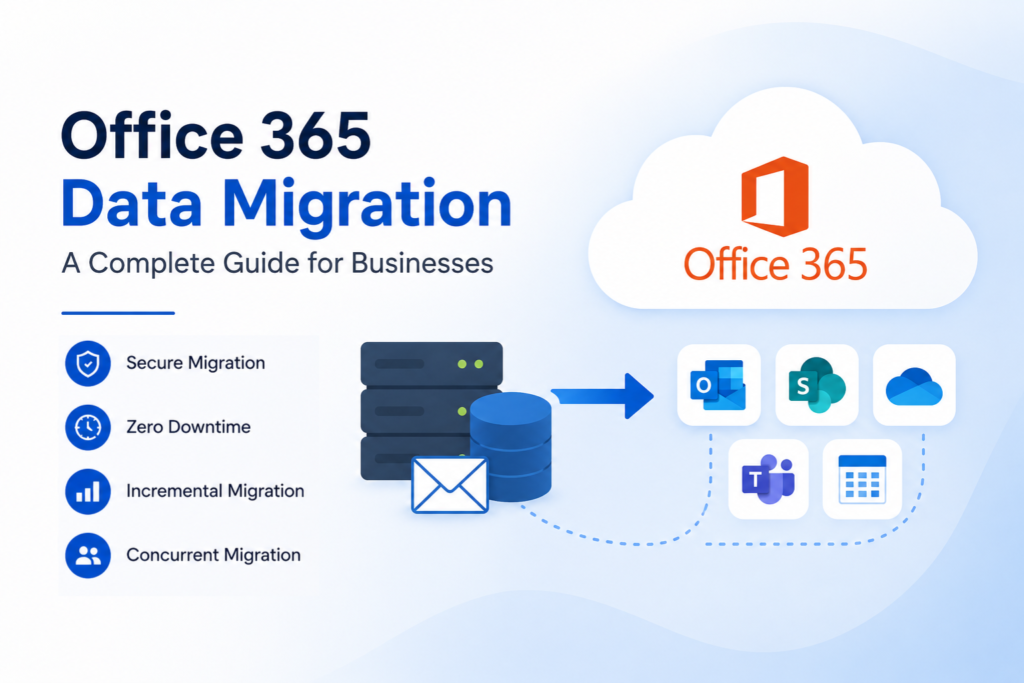
Table of Contents
- What Is Office 365 Data Migration?
- Why Businesses Are Migrating to Microsoft 365
- Types of Office 365 Migration Methods
- Key Steps for a Successful Office 365 Migration
- Common Office 365 Migration Challenges
- Office 365 Migration Best Practices
- Tools for Office 365 Data Migration
- Benefits of Migrating to Microsoft 365
- How to Choose the Right Office 365 Migration Tool
- Why Choose EdbMails for Office 365 Migration?
- Conclusion
- Frequently Asked Questions
What Is Office 365 Data Migration?
It is the process of transferring business data—including emails, contacts, calendars, tasks, notes, public folders, and user mailboxes—from an existing email system to Microsoft 365 (formerly Office 365).
The migration process involves much more than simply copying emails from one server to another. Organizations must ensure that mailbox structures, folder hierarchies, permissions, metadata, and user accessibility remain intact throughout the transition. A successful migration enables employees to continue working with minimal interruption while preserving business continuity.
Organizations typically migrate from a variety of source environments, including:
- Microsoft Exchange Server
- Hosted Exchange providers
- IMAP-based email platforms
- PST archive files
- Other Microsoft 365 tenants
- Third-party cloud email services
The primary objective of this Migration is to centralize communication, improve collaboration, and take advantage of Microsoft’s secure cloud infrastructure without losing valuable business information.
Unlike traditional on-premises environments, Microsoft 365 offers organizations the flexibility to scale resources as business requirements change. Employees can securely access their mailboxes from desktops, laptops, tablets, or mobile devices, making remote work and hybrid workplaces significantly easier to manage.
Data migration projects can vary greatly depending on the size of the organization. A small business with a few dozen users may complete the migration within a day, while large enterprises with thousands of mailboxes often execute migrations in carefully planned phases over several weeks or months. Regardless of project size, proper planning remains one of the most important factors for success.
Why Businesses Are Migrating to Microsoft 365
Businesses across industries are increasingly replacing legacy email systems with Microsoft 365 because it delivers a secure, scalable, and feature-rich productivity platform. Instead of maintaining expensive on-premises infrastructure, organizations can leverage Microsoft’s cloud services to reduce operational costs while improving employee productivity.
Here are some of the primary reasons why organizations choose Office 365 Data Migration.
1. Anywhere Access to Business Data
One of the biggest advantages of Microsoft 365 is its accessibility. Employees can securely access their emails, calendars, contacts, and documents from almost any internet-connected device. Whether users are working from home, traveling, or collaborating across multiple office locations, Microsoft 365 ensures that business communication remains uninterrupted. This flexibility has become especially valuable for organizations adopting hybrid and remote work models.
2. Improved Security
Cybersecurity continues to be one of the biggest concerns for modern organizations.
Microsoft 365 includes multiple security technologies designed to protect sensitive business information, including:
- Multi-factor authentication (MFA)
- Advanced threat protection
- Data encryption
- Anti-spam and anti-malware filtering
- Identity and access management
- Compliance management tools
These built-in security capabilities help organizations reduce risks while meeting industry compliance requirements.
3. Lower Infrastructure Costs
Maintaining an on-premises Exchange environment requires organizations to invest in:
- Physical servers
- Storage systems
- Network infrastructure
- Backup solutions
- Hardware maintenance
- Software upgrades
- IT administration
Migrating to Microsoft 365 significantly reduces these infrastructure costs because Microsoft manages the underlying cloud environment. Instead of purchasing and maintaining hardware, organizations pay predictable subscription fees based on their licensing requirements.
4. Better Collaboration
Modern businesses depend on effective collaboration between employees, departments, partners, and customers.
Microsoft 365 integrates multiple collaboration tools into a single ecosystem, including:
- Microsoft Teams
- SharePoint Online
- OneDrive for Business
- Exchange Online
- Microsoft Planner
- Microsoft Loop
Employees can communicate, share documents, schedule meetings, and collaborate on projects in real time without switching between multiple platforms.
5. Automatic Updates
Traditional on-premises environments require administrators to install updates, patches, and security fixes manually. With Microsoft 365, Microsoft handles infrastructure maintenance, feature updates, and security improvements automatically. This allows IT teams to spend less time managing servers and more time focusing on strategic business initiatives.
6. Business Scalability
Organizations rarely remain the same size forever. As companies expand, merge, or open new offices, Microsoft 365 makes it easy to add new users, assign licenses, and increase storage capacity without purchasing additional hardware. Likewise, organizations can reduce licensing during periods of downsizing, making Microsoft 365 a flexible long-term investment.
7. Business Continuity
Unexpected hardware failures, natural disasters, ransomware attacks, or power outages can significantly disrupt business operations. Because Microsoft 365 stores mailbox data in Microsoft’s cloud infrastructure, employees can continue accessing their emails and collaboration tools even if local office systems become unavailable. This improves business continuity and disaster recovery planning.
Types of Office 365 Migration Methods
Every organization has different migration requirements. The ideal migration approach depends on several factors, including the number of users, mailbox sizes, existing infrastructure, budget, and acceptable downtime.
Microsoft supports several migration methods, each designed for different business scenarios.
1. Cutover Migration
Cutover Migration is one of the simplest migration methods available.
In this approach, all mailboxes are migrated to Microsoft 365 in a single migration event.
This method is generally suitable for:
- Small businesses
- Organizations with relatively few mailboxes
- Companies looking for a quick migration
Advantages
- Simple deployment
- Faster migration process
- Minimal planning complexity
- Easy user transition
Limitations
- May require temporary downtime
- Less suitable for large enterprises
- Not practical for organizations with thousands of users
2. Staged Migration
A staged migration moves users in multiple batches instead of migrating the entire organization at once.
This allows administrators to migrate departments or business units gradually while keeping the remaining users on the existing environment.
Organizations often choose staged migrations when:
- They have hundreds of users.
- They want to reduce migration risks.
- They need more flexibility during deployment.
Advantages
- Reduced operational risk
- Easier user management
- Better troubleshooting
- Lower impact on daily operations
Limitations
- Longer project timelines
- Additional planning requirements
- Temporary coexistence between environments
3. Hybrid Migration
Hybrid Migration creates a coexistence environment between the on-premises Exchange Server and Microsoft 365.
Both systems continue operating together while mailboxes are migrated gradually.
This is one of the most popular approaches for medium and large enterprises because it provides maximum flexibility.
A hybrid deployment allows organizations to:
- Maintain a familiar user experience.
- Migrate mailboxes in phases.
- Synchronize directories.
- Share calendars between environments.
- Preserve mail flow throughout the migration.
Advantages
- Minimal disruption
- Seamless coexistence
- Enterprise scalability
- Flexible migration scheduling
Limitations
- More complex configuration
- Higher administrative requirements
- Additional infrastructure planning
4. IMAP Migration
Organizations using non-Microsoft email platforms often migrate their mailbox data using the IMAP protocol.
IMAP Migration primarily transfers email messages from supported email servers into Exchange Online mailboxes.
This method is commonly used when migrating from:
- Gmail
- Zimbra
- Dovecot
- Courier Mail
- Other IMAP-supported email services
Advantages
- Supports many email providers
- Simple implementation
- Suitable for basic email migration
Limitations
IMAP migration generally transfers only email messages. Other mailbox items such as contacts, calendars, tasks, notes, and rules typically require additional migration methods or third-party tools to complete the migration successfully.
5. PST Import Migration
Many organizations maintain years of archived mailbox data stored in PST files.
Rather than leaving these files scattered across employee computers or network shares, businesses often import them into Microsoft 365 so users can access historical emails from a centralized location.
PST migration is commonly performed during:
- Exchange upgrades
- Legacy Outlook migrations
- Office consolidations
- Compliance projects
- Email archive modernization
Organizations can import PST files using Microsoft’s native import services or dedicated migration software that automates the import process and simplifies large-scale deployments.
While PST imports are relatively straightforward, organizations should verify file integrity, eliminate duplicate data where possible, and organize archive files before beginning the migration. Proper preparation helps reduce errors and ensures that users have access to their historical mailbox data after the migration is complete.
Choosing the right migration method is one of the most important decisions in any Migration project. Factors such as business size, infrastructure, mailbox volume, available resources, and acceptable downtime all influence the best approach. In the next section, we’ll explore the key steps involved in planning and executing a successful migration, along with common challenges and proven best practices to ensure a smooth transition.
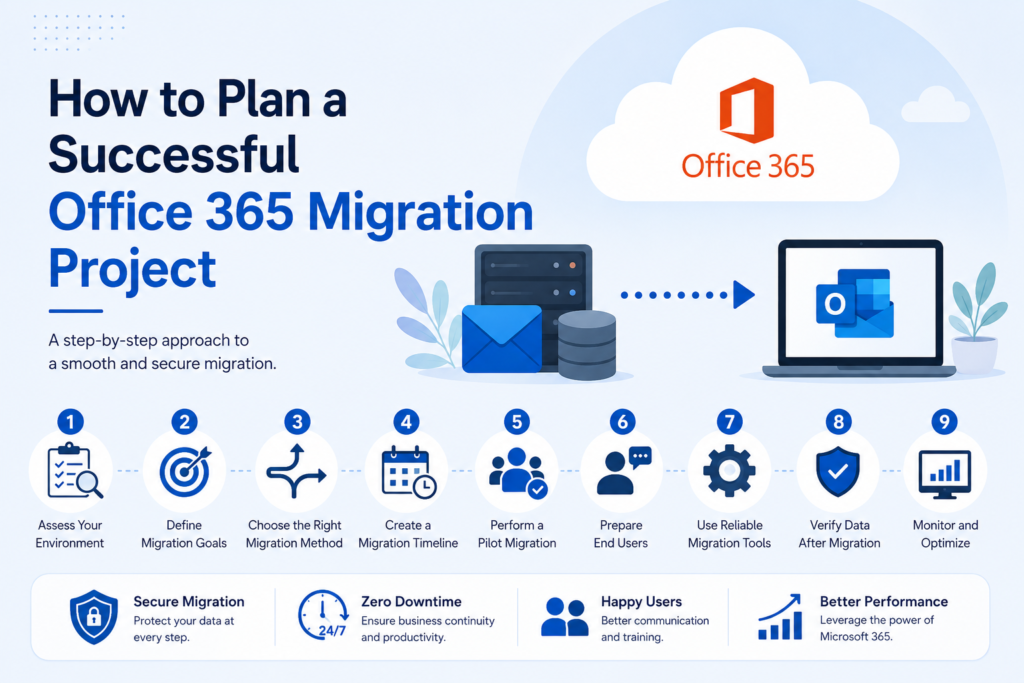
Key Steps for a Successful Office 365 Data Migration
A successful Migration requires much more than selecting a migration method and transferring mailbox data. Every migration should follow a structured process that minimizes business disruption, protects sensitive information, and ensures users can continue working with little or no interruption.
Whether you’re migrating a small business with a few dozen users or a large enterprise with thousands of mailboxes, following a proven migration strategy significantly increases the chances of success.
1. Assess Your Existing Environment
The first and perhaps most important step is understanding your current IT environment. A detailed assessment provides valuable insights into what needs to be migrated and helps identify potential issues before the migration begins.
During the assessment phase, organizations should evaluate:
- Total number of users and mailboxes
- Mailbox sizes and storage requirements
- Public folders and shared mailboxes
- Distribution groups and Microsoft 365 Groups
- Existing email platform
- Network bandwidth
- Internet connectivity
- Exchange Server version (if applicable)
- Authentication methods
- Existing security and compliance policies
Administrators should also identify inactive users, obsolete mailboxes, and duplicate data. Cleaning up unnecessary information before migration reduces the amount of data that must be transferred, resulting in faster migration times and lower storage requirements.
A comprehensive assessment also helps estimate the project’s duration, resource requirements, and potential risks.
2. Define Migration Objectives
Every organization has unique business goals. Before migrating, stakeholders should clearly define what they expect to achieve.
Typical migration objectives include:
- Modernizing email infrastructure
- Reducing on-premises server maintenance
- Improving collaboration
- Supporting remote work
- Enhancing security
- Meeting regulatory compliance
- Simplifying IT management
Clearly defined objectives help guide technical decisions throughout the migration project.
3. Choose the Right Migration Method
Based on the assessment results, organizations can select the most suitable migration approach.
The decision should consider several factors:
- Organization size
- Mailbox count
- Existing infrastructure
- Downtime tolerance
- Budget
- Technical expertise
- Future scalability
For example:
- Small businesses often choose Cutover Migration.
- Mid-sized organizations may benefit from Staged Migration.
- Large enterprises typically prefer Hybrid Migration.
- Organizations using non-Microsoft email systems frequently use IMAP Migration.
- Businesses with historical Outlook archives commonly perform PST Import Migration.
Selecting the appropriate migration method early helps avoid unnecessary complications later in the project.
4. Prepare the Microsoft 365 Environment
Before transferring any mailbox data, administrators should prepare the destination environment thoroughly.
Preparation tasks typically include:
- Verifying domain ownership
- Creating Microsoft 365 user accounts
- Assigning appropriate licenses
- Configuring Exchange Online
- Setting mailbox quotas
- Enabling Multi-Factor Authentication (MFA)
- Configuring Conditional Access policies
- Setting up retention policies
- Configuring security groups
- Reviewing compliance settings
Proper preparation significantly reduces migration errors and ensures that users can begin working immediately after the migration is completed.
5. Communicate With End Users
One of the most overlooked aspects is user communication.
Employees should understand:
- Why the migration is taking place
- What changes to expect
- Migration schedules
- Possible temporary service interruptions
- New login procedures
- Available support resources
Providing regular updates helps reduce confusion and improves user confidence throughout the migration process.
Organizations often prepare migration guides, FAQs, training sessions, and internal announcements to help employees adapt more quickly.
6. Perform a Pilot Migration
Rather than migrating every mailbox immediately, organizations should conduct a pilot migration.
A pilot project usually includes:
- A small group of users
- Different departments
- Various mailbox sizes
- Shared mailboxes
- Executive users
- IT administrators
Pilot migrations help identify:
- Performance bottlenecks
- Network limitations
- Authentication issues
- Mail flow problems
- Permission conflicts
- Compatibility issues
Resolving these problems before the full migration significantly reduces project risks.
7. Migrate Mailbox Data
Once testing has been completed successfully, the actual migration can begin.
Typical data transferred includes:
- Emails
- Contacts
- Calendars
- Tasks
- Notes
- Journal entries
- Shared mailboxes
- Public folders
- Folder hierarchy
- Mailbox permissions
Depending on the migration method, administrators may migrate users in phases or complete the migration all at once.
Many organizations choose specialized migration software to automate mailbox transfers, simplify mailbox mapping, and monitor migration progress more efficiently.
8. Validate the Migration
Migration is not complete once mailbox data has been copied.
Administrators should carefully validate every migrated mailbox by checking:
- Mailbox size
- Folder structure
- Email count
- Calendar appointments
- Contacts
- Shared mailbox access
- Delegated permissions
- Public folder accessibility
- Mail flow
- Outlook connectivity
Validation ensures that users can continue working without unexpected issues.
9. Monitor After Migration
Even after the migration has been completed successfully, IT administrators should continue monitoring the environment.
Post-migration monitoring includes:
- User login activity
- Mail flow performance
- Synchronization status
- Security alerts
- License utilization
- Help desk requests
Continuous monitoring helps resolve any remaining issues before they affect productivity.
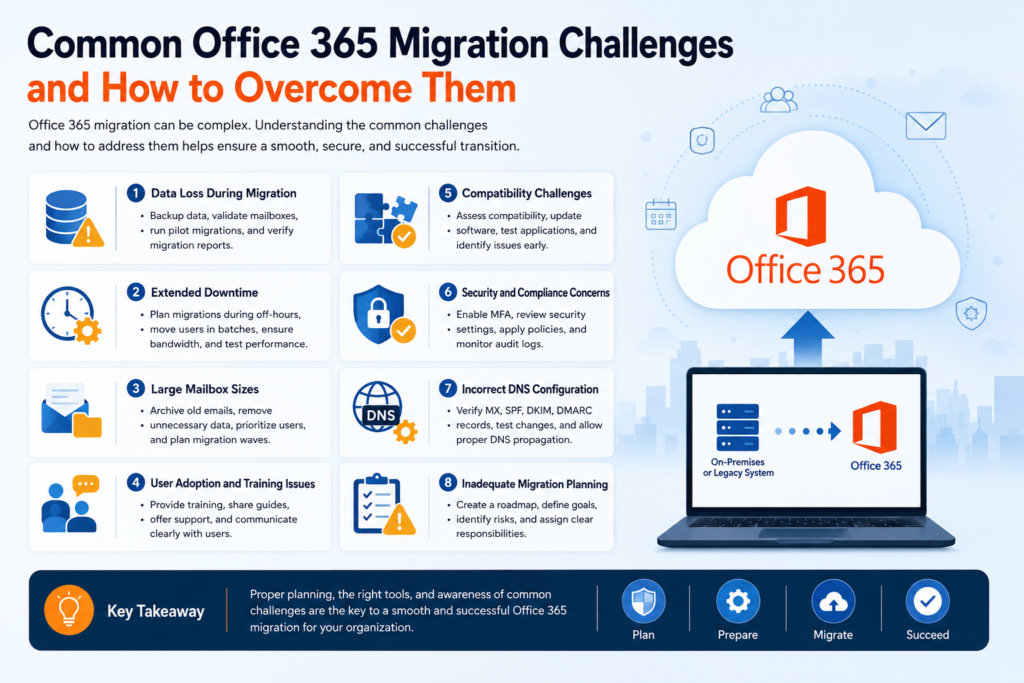
Common Office 365 Data Migration Challenges
Every migration project presents unique challenges. Understanding these challenges allows organizations to prepare mitigation strategies before problems arise.
Large Mailbox Sizes
Large mailboxes require more bandwidth and significantly longer migration times. Organizations with terabytes of mailbox data often schedule migrations during evenings, weekends, or low-traffic periods to reduce the impact on daily business operations.
Limited Network Bandwidth
Migration performance depends heavily on available internet bandwidth. Slow or unstable internet connections may increase migration time and occasionally require administrators to schedule migrations in smaller batches. Organizations with multiple branch offices should evaluate network capacity well before migration begins.
Downtime Concerns
Businesses often worry that employees will lose access to email during migration. Careful scheduling, phased migrations, and incremental synchronization can help minimize service interruptions. Many organizations perform final synchronization outside normal business hours to reduce downtime even further.
Data Integrity Risks
Maintaining data integrity is one of the highest priorities during migration.
Potential issues include:
- Missing emails
- Corrupted mailbox items
- Duplicate messages
- Folder mismatches
- Metadata inconsistencies
Performing validation after migration helps identify and resolve these issues quickly.
Authentication and Permission Issues
Incorrect mailbox permissions or authentication settings may prevent users from accessing their mailboxes after migration.
Administrators should verify:
- User credentials
- Mailbox permissions
- Shared mailbox access
- Delegation settings
- Security policies
Testing these settings before production deployment helps prevent unnecessary support requests.
Compliance Requirements
Organizations operating in healthcare, finance, legal services, and government sectors must comply with strict regulatory requirements.
Migration projects should preserve:
- Retention policies
- Audit logs
- Legal hold settings
- Compliance labels
- Security controls
Failure to maintain compliance may expose organizations to legal and financial risks.
User Adoption
Technology alone does not guarantee migration success.
Employees may need time to become familiar with Microsoft 365 applications such as:
- Microsoft Teams
- OneDrive
- Outlook on the Web
- SharePoint Online
Providing user training and documentation encourages faster adoption and reduces support tickets.
Tools for Office 365 Data Migration
Microsoft offers several native migration options that work well for many standard migration scenarios. These built-in tools support methods such as Cutover, Staged, Hybrid, IMAP, and PST import migrations, making them suitable for organizations with straightforward migration requirements.
However, as migration projects become larger and more complex, administrators often require additional flexibility, automation, and reporting capabilities.
Dedicated migration solutions can simplify tasks such as mailbox mapping, incremental synchronization, migration scheduling, error handling, and detailed reporting. These features help reduce manual effort and improve overall migration efficiency, particularly when handling thousands of mailboxes or multiple migration batches.
During their research, many IT professionals evaluate specialized migration solutions such as EdbMails, which supports a wide variety of migration scenarios, including Exchange Server to Microsoft 365, tenant-to-tenant migration, IMAP migration, hosted Exchange migration, and PST to Microsoft 365 migration. Selecting a reliable migration solution can significantly streamline complex migration projects while helping administrators maintain data integrity and minimize downtime.
Benefits of Office 365 Data Migration
Migrating to Microsoft 365 provides organizations with far more than cloud-based email. It enables businesses to modernize their entire communication and collaboration environment while improving security, scalability, and operational efficiency.
Some of the key benefits include:
- Secure access to business data from virtually anywhere.
- Improved collaboration using Microsoft Teams, SharePoint, OneDrive, and Exchange Online.
- Enhanced security through advanced threat protection, encryption, and multi-factor authentication.
- Reduced infrastructure and maintenance costs by eliminating the need for on-premises email servers.
- Automatic updates that keep systems secure without manual intervention.
- Greater scalability to support business growth, acquisitions, and remote work.
- Built-in compliance and governance features for organizations operating in regulated industries.
- Increased productivity through seamless integration across Microsoft applications.
- Better disaster recovery and business continuity with cloud-based data storage.
These advantages make it a strategic investment for organizations seeking a modern, secure, and future-ready productivity platform.
The final stage of any migration project is selecting the right migration solution and understanding how the chosen tool can simplify the overall process. In the next section, we’ll explore the key factors to consider when choosing an Office 365 migration solution, discuss why many organizations select EdbMails Office 365 Migration Software, and conclude with frequently asked questions that address common migration concerns.
Why Choose EdbMails for Office 365 Migration?
Selecting the right migration software can have a significant impact on the success of an Office 365 Data Migration project. Organizations need a solution that not only transfers mailbox data securely but also simplifies administration, minimizes downtime, and supports a variety of migration scenarios.
EdbMails is designed to help businesses of all sizes migrate to Microsoft 365 with greater efficiency. Whether you’re migrating a handful of users or managing a large enterprise deployment, the software provides the flexibility and automation needed to complete migration projects with confidence.
Some of the key capabilities include:
Secure and Accurate Mailbox Migration
EdbMails is designed to migrate mailbox data while preserving folder structure, mailbox hierarchy, and item properties. Emails, contacts, calendars, tasks, notes, journals, and attachments are transferred accurately, helping organizations maintain data consistency throughout the migration.
Support for Multiple Migration Scenarios
Different organizations have different migration requirements.
EdbMails supports numerous migration scenarios, including:
- Exchange Server to Microsoft 365
- Microsoft 365 tenant-to-tenant migration
- Hosted Exchange migration
- IMAP to Microsoft 365 migration
- PST to Microsoft 365 migration
- Public folder migration
This flexibility enables businesses to manage different migration projects using a single solution.
Incremental Migration
For organizations migrating in phases, EdbMails supports incremental migration, allowing only newly added or modified mailbox items to be synchronized after the initial migration.
This helps:
- Reduce migration time
- Lower bandwidth consumption
- Keep mailbox data synchronized
- Minimize disruption for end users
Minimal Downtime
Business continuity is a major concern during migration. EdbMails is designed to support migration projects with minimal downtime, allowing organizations to schedule mailbox transfers efficiently while users continue their day-to-day work with minimal interruption.
Automatic Mailbox Mapping
The software can automatically map source and destination mailboxes wherever possible, reducing manual configuration and simplifying large-scale migration projects. This feature becomes particularly valuable when migrating hundreds or thousands of user accounts.
Detailed Migration Reports
Administrators can monitor every stage of the migration using comprehensive reporting and logging features. These reports provide valuable insights into migration status, completed mailboxes, skipped items, and any issues that may require attention, making it easier to manage complex migration projects.
Scalable for Organizations of Any Size
Whether an organization is migrating a few mailboxes or several thousand users across multiple departments or locations, EdbMails is designed to scale according to business requirements. Its flexibility makes it suitable for small businesses, educational institutions, managed service providers (MSPs), and large enterprises alike.
User-Friendly Interface
A straightforward interface helps reduce complexity for administrators, allowing both experienced IT professionals and those with limited migration experience to perform mailbox migrations more efficiently. The combination of automation, reporting, and intuitive workflows helps streamline migration projects from planning through completion.
Conclusion
Office 365 Data Migration is much more than moving emails from one platform to another. It is a strategic initiative that enables organizations to modernize their communication infrastructure, strengthen security, improve collaboration, and support long-term business growth. A successful migration begins with careful planning. Assessing the existing environment, selecting the appropriate migration method, preparing Microsoft 365 correctly, conducting pilot migrations, validating migrated data, and following industry best practices all contribute to a smooth transition with minimal disruption to users.
As organizations continue adopting cloud-first strategies, having the right migration approach becomes increasingly important. While Microsoft’s native migration options are suitable for many standard deployments, businesses with larger or more complex environments often benefit from using specialized migration solutions that provide automation, incremental synchronization, mailbox mapping, and detailed reporting.
Many organizations evaluating migration options consider EdbMails Office 365 Migration Software because it supports multiple migration scenarios, helps preserve mailbox integrity, simplifies administration, and reduces the complexity associated with large-scale Office 365 migration projects. By combining proper planning with a reliable migration solution, businesses can confidently transition to Microsoft 365 while maximizing productivity, minimizing downtime, and ensuring a secure migration experience.
Frequently Asked Questions (FAQs)
1. What is Office 365 Data Migration?
Office 365 Data Migration is the process of transferring emails, contacts, calendars, tasks, notes, and other mailbox data from existing email systems such as Exchange Server, hosted Exchange, IMAP-based services, or PST files to Microsoft 365. The goal is to centralize communication, improve collaboration, and take advantage of Microsoft’s cloud-based productivity platform.
2. How long does an Office 365 Data Migration take?
Migration time depends on several factors, including the number of mailboxes, total data volume, network bandwidth, internet speed, migration method, and the complexity of the source environment. Small business migrations may be completed within a few hours, whereas enterprise migrations involving thousands of users can take several days or even weeks. Proper planning, pilot migrations, and incremental synchronization can help optimize migration timelines.
3. Can I migrate PST files directly to Microsoft 365?
Yes. PST files can be imported into Microsoft 365 using Microsoft’s native import services or dedicated migration software. Many organizations prefer specialized migration solutions because they simplify large-scale PST imports, automate mailbox mapping, and reduce manual administrative effort.
4. How can organizations reduce downtime during Office 365 Data Migration?
Downtime can be minimized by conducting a thorough pre-migration assessment, cleaning up unnecessary data, performing pilot migrations, scheduling mailbox transfers during off-peak hours, using incremental synchronization, and validating mailbox data after migration. Effective communication with end users also helps ensure a smoother transition.
5. What data can be migrated to Microsoft 365?
Depending on the migration method and the tools used, organizations can migrate a wide range of mailbox data, including emails, contacts, calendars, tasks, notes, journals, shared mailboxes, public folders, attachments, folder structures, and mailbox permissions. The exact scope of migration varies based on the source platform and migration solution.
6. Is Office 365 Data Migration secure?
Yes. Office 365 Data Migration can be highly secure when organizations use trusted migration methods, implement strong authentication mechanisms, enable encryption during data transfer, and follow Microsoft’s recommended security practices. Choosing a reliable migration solution and validating migrated data further enhances the overall security and integrity of the migration process.