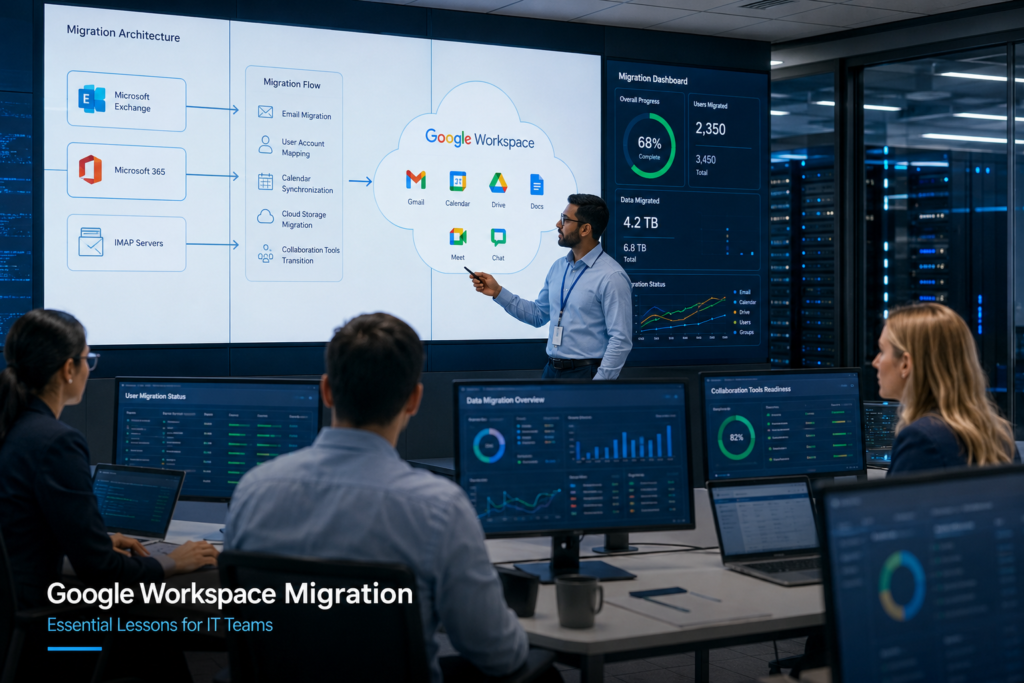
📋 COMPLETE IT PRO GUIDE
Google Workspace Migration:
Everything You Need to Know
🗓 July 2026 | ⏱ 12 min read | 👤 IT Professional | 🏷 Google Workspace
Planning a Google Workspace migration? Whether you are moving Gmail, contacts, calendars, tasks, and Drive files to Microsoft 365, migrating to Exchange Server or an IMAP platform, or consolidating multiple Google Workspace accounts after a merger, this guide covers planning, migration methods, prerequisites, execution, and post-migration best practices for a clean, low-downtime transition.
Migrating away from or between Google Workspace environments is one of the more sensitive projects an IT team runs, because Gmail stores mail as labels rather than folders, Drive permissions are deeply interconnected, and Google enforces strict API throttling. Done without preparation, a migration produces duplicated mail, broken sharing links, and days of downtime.
This guide walks through every stage of a Google Workspace migration: planning, prerequisites, choosing a migration method, mapping what actually gets moved, the step-by-step execution, and the mistakes that derail projects, so your transition stays predictable from pilot to cutover.
Table of Contents
- What Is Google Workspace Migration?
- Migration Types
- Planning Your Migration
- What Gets Migrated?
- Step-by-Step Migration Process
- Common Migration Mistakes
- Choosing the Right Tool
- Pricing
- Frequently Asked Questions
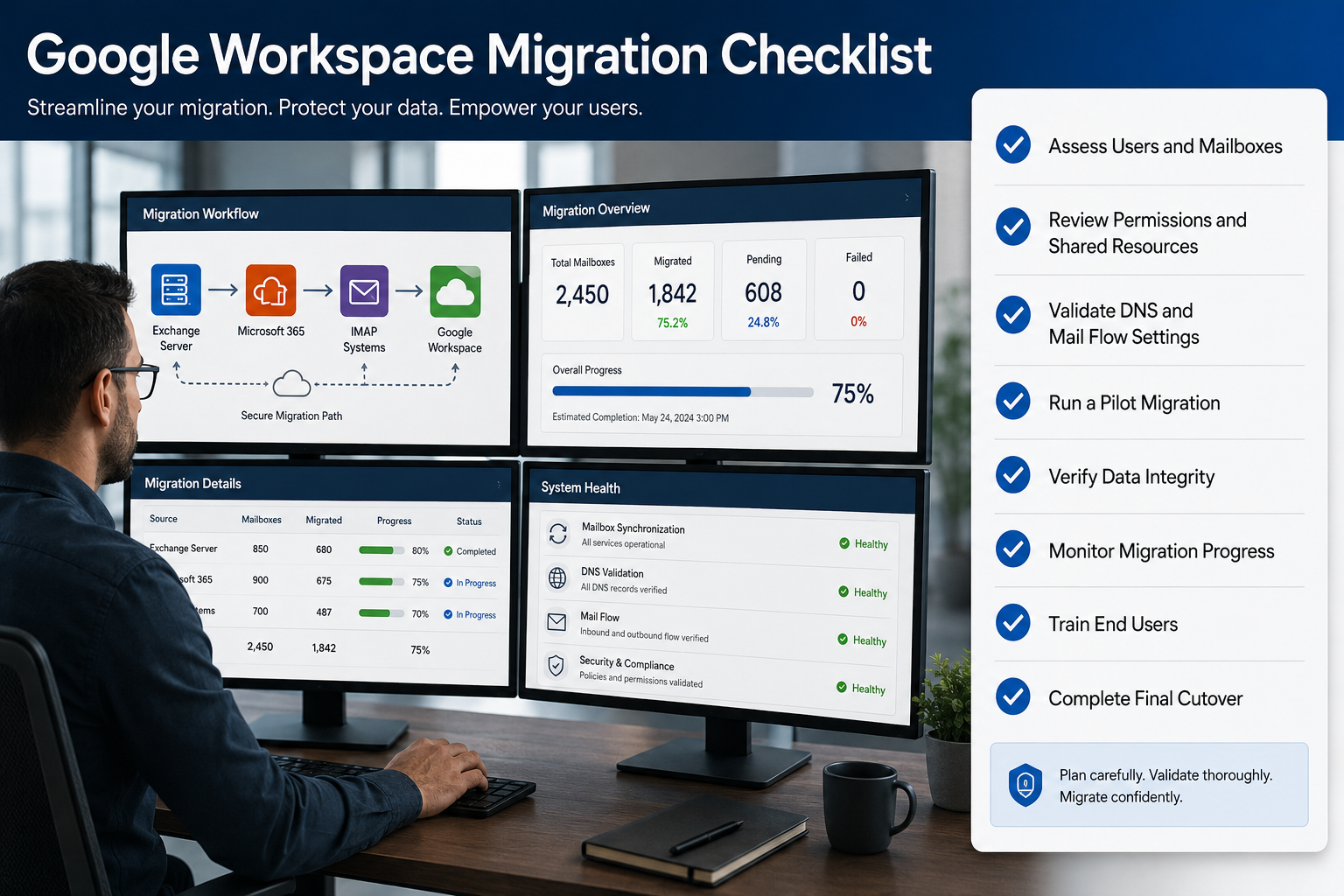
▲ A Google Workspace migration checklist: assessment, delegation, pilot testing, and validation.
1. What Is Google Workspace Migration?
Google Workspace migration (formerly G Suite migration) is the process of moving business data such as Gmail messages, labels, contacts, calendars, tasks, attachments, and Drive files out of Google Workspace, or between two Google Workspace accounts. Organizations most commonly migrate to Microsoft 365, on-premises or hosted Exchange, or an IMAP-based platform, or consolidate several Google tenants into one after a merger or acquisition.
Google Workspace to Microsoft 365
Move Gmail, contacts, calendars, tasks, and Drive files into Exchange Online and OneDrive, preserving folder hierarchy and metadata.
Google Workspace to Exchange Server
Migrate mailboxes to on-premises or hosted Exchange 2013 through 2019 while keeping labels mapped to folders.
Google Workspace to IMAP
Migrate Gmail data to Zoho Mail, Zimbra, Outlook, cPanel, and other IMAP-compatible servers with folder structure intact.
Google-to-Google Consolidation
Merge or consolidate multiple Google Workspace accounts into a single tenant, commonly required after mergers or restructuring.
💡 Key Insight
Google Workspace connects to Microsoft 365, Exchange, and IMAP through a Google Admin account with domain-wide delegation, so you never collect individual user passwords. Set up the service account and API scopes 1 to 2 weeks before your first wave, because that permission scaffolding is where most projects lose time.
2. Migration Types: Which One Is Right for You?
Your destination platform and organization size decide the method. This is the first call to make before touching any settings.
| Migration Scenario | Best For | Downtime Risk | Complexity |
|---|---|---|---|
| Workspace to Microsoft 365 | Orgs standardizing on Outlook | Low | Medium |
| Workspace to Exchange | On-prem / data sovereignty needs | Low | Medium |
| Workspace to IMAP | Zoho, Zimbra, cPanel targets | Low | Low–Medium |
| Google-to-Google | Mergers & account consolidation | Minimal | High |
| Gmail to PST Backup | Archiving / compliance | None | Low |
3. Planning Your Migration: The Non-Negotiables
Inventory Everything First
Document every user mailbox, shared mailbox, Google Group, shared Drive, calendar resource, and delegated account before you move anything. Note mailbox sizes and the largest label trees, because those are the accounts that hit API throttling first. Know exactly what you are moving before you start moving it.
Set Up Domain-Wide Delegation Early
Create a Google Cloud service account, enable the Gmail, Calendar, Contacts, and Drive APIs, and authorize the client ID with the correct OAuth scopes in the Google Admin console. This is the single prerequisite that lets a migration tool read every user’s data through the admin account, and getting the scopes wrong is the most common reason a first run fails.
⚠️ Common Pitfall
Every app your users signed into with “Sign in with Google” (CRMs, e-signature, HR, project tools) authenticates through Google OAuth. After cutover those logins break. Audit connected apps under Admin Console > Security > API Controls and coordinate re-authentication on the target platform before the move, not after.
Run a Pilot Before the Full Migration
Pick 10 to 12 representative users across departments and mailbox sizes and migrate them end to end first, including IT staff and at least one heavy Drive user. Validate label mapping, calendar recurrence, shared Drive permissions, and delivery before the production waves begin.
A properly scoped pilot surfaces the large majority of issues before they reach the wider organization. Skipping it just moves those same problems to cutover weekend, where they cost far more to fix.
4. What Gets Migrated? Full Checklist
Gmail & Labels
Emails, attachments, and Gmail labels mapped to folders on the target, with read/unread state and message metadata preserved.
Contacts
Personal and directory contacts, contact groups, and associated fields transferred without manual re-entry.
Calendars
Events, recurring series, reminders, and attendees migrated so schedules stay intact after the move.
Tasks
Google Tasks lists and items carried over to the destination platform’s task or to-do system.
Drive & Shared Drives
User Drive files, shared drives, and folder structures moved into OneDrive or the target file store.
Folder Hierarchy & Metadata
The full nested structure, timestamps, and item properties are preserved so data behaves the same as it did in Google Workspace.
5. Step-by-Step Migration with EdbMails
Here is how a Google Workspace migration runs from start to finish using EdbMails, with no PowerShell or command line at any stage.
1. Download and Install EdbMails
Install on a Windows machine with reliable network access. No scripting or command-line setup required.
2. Connect to Google Workspace (Source)
Authenticate with your Google Admin account using the service account and domain-wide delegation you configured. EdbMails reads every user mailbox through the admin account, so no individual passwords are needed.
3. Select Mailboxes and Data
Load all users or apply date-range and folder/label filters to scope exactly what migrates.
4. Connect to the Target
Authenticate to Microsoft 365, Exchange, or your IMAP server. EdbMails can auto-create target mailboxes and assign licenses when they do not exist yet.
5. Auto-Map and Start Migration
Source and destination mailboxes map automatically by email address, display name, or UPN, cutting manual setup. Multiple mailboxes migrate concurrently.
6. Run Incremental Delta Passes
Later runs migrate only new or changed items, never duplicates. Run daily until cutover to keep the target in sync while users keep working in Google Workspace.
7. Cutover and Post-Migration Tasks
Update MX records, refresh SPF, DKIM, and DMARC, run a verification report, and set up user profiles on the new platform. Users switch over once DNS propagates and mailbox counts are validated.
✅ Pro Tip
Google throttles API requests hard on large mailboxes. Run migrations in waves, use concurrent mailbox processing, and let the tool handle throttling automatically rather than pushing every user at once and getting rate-limited mid-run.
Ready to Start Your Migration?
EdbMails handles Gmail, contacts, calendars, tasks, and Drive in one tool. Try free with up to 30 items per folder, no credit card required.
6. Top 5 Migration Mistakes to Avoid
1. Underestimating Google API Throttling
Google caps data transfer and API calls per account. Firing every mailbox at once gets you rate-limited and stretches the project. Plan waves, use concurrent processing, and let the tool back off and resume automatically.
2. Forgetting Connected “Sign in with Google” Apps
Third-party apps that authenticate through Google credentials stop working for users after cutover. Inventory them from the Admin console and arrange re-authentication on the target platform ahead of time.
⚠️ Important
Communicate the app re-login requirement to users at least two weeks before their cutover date. Discovering broken logins after the move is the fastest way to lose user trust in the whole project.
3. Ignoring How Labels Map to Folders
Gmail uses labels, and a single message can carry several. On a folder-based target that can create duplicates unless the tool maps labels to folders correctly. Confirm the mapping behavior during the pilot, not in production.
4. Leaving DNS and Mail Authentication Too Late
MX, SPF, DKIM, and DMARC records all change at cutover. Prepare and lower TTLs days in advance so propagation is quick and deliverability does not drop when you flip the switch.
5. Skipping the Pilot
A pilot with a representative group surfaces most issues before they hit hundreds of users. It is the single most valuable diagnostic step in the project, and it is not optional.
7. Choosing the Right Google Workspace Migration Tool
| Feature | EdbMails | Manual / Native | Other Tools |
|---|---|---|---|
| No scripting required | ✓ Yes | ✗ No | Varies |
| Admin account, no user passwords | ✓ Yes | Partial | Some |
| Concurrent mailbox migration | ✓ Yes | ✗ Limited | Some |
| Incremental / delta migration | ✓ Automatic | ✗ Manual | Some |
| Automatic throttling handling | ✓ Yes | ✗ No | Varies |
| Pricing model | One-time, per mailbox | Free but manual | Per-user / month |
| 24/7 free support | ✓ Yes | ✗ Limited | Paid plans |
EdbMails delivered exactly what it promised. I was able to transfer over 200 mailboxes with quick assistance, good value, and reasonable pricing. Absolutely nothing to fret about.
— Carel Plasman, United States
I successfully migrated over 100 GB of data across 100 mailboxes concurrently. Combined with the auto-mapping feature, EdbMails is my top choice for migrations.
— David W, United Kingdom
8. Simple, Transparent Pricing
Unlike subscription tools that charge monthly per user, EdbMails uses a one-time, per-mailbox model. You only pay for the mailboxes you actually migrate, with no recurring fees and unlimited migration runs per license.
MOST POPULAR
Google Workspace Migration License
One-time license, priced per mailbox
See the pricing page for current per-mailbox rates
- ✓ Unlimited migration runs per license
- ✓ Gmail, contacts, calendars, tasks, and Drive
- ✓ Concurrent mailbox migration
- ✓ Incremental (delta) migration included
- ✓ Auto mailbox creation and licensing on the target
- ✓ 24/7 free technical support
- ✓ Lifetime license, no subscription
9. Frequently Asked Questions
How long does a Google Workspace migration take?
It ranges from a few hours to several weeks depending on mailbox sizes, Drive volume, Google API throttling limits, and the number of users, which is why incremental passes and waves matter.
Can I migrate without collecting user passwords?
Yes. Migration runs through a Google Admin account with domain-wide delegation, so a service account accesses each mailbox without individual user credentials.
What data can be migrated from Google Workspace?
Gmail messages and labels, attachments, contacts, calendars, tasks, and Drive files, with folder hierarchy and metadata preserved.
How are Gmail labels handled on the target?
Labels are mapped to folders on the destination. A good migration tool handles messages carrying multiple labels without creating duplicate copies.
Can the migration run without downtime?
Largely, yes. Users keep working in Google Workspace while incremental passes sync the target, and you switch over only at DNS cutover.
What is incremental migration?
It transfers only newly created or modified items after the initial pass, cutting bandwidth and preventing duplicates on repeated runs.
Does Google throttling affect the migration?
Yes. Google enforces per-account API and transfer limits. Tools that handle throttling automatically and support concurrency keep performance steady.
What permissions are required?
Google super administrator access to configure the service account and domain-wide delegation on the source, plus admin rights on the target platform.
Conclusion
Google Workspace migrations succeed when teams invest early in inventory, domain-wide delegation, a real pilot, and clear communication with users about app re-authentication and cutover timing.
Whether you are moving to Microsoft 365, Exchange, an IMAP platform, or consolidating Google accounts, the combination of a sound method and a tool that handles throttling, concurrency, and incremental passes is what keeps downtime and duplicates out of the project.
Plan the waves, test against a pilot, and validate every mailbox count before cutover, and the transition off Google Workspace stays boring in the best possible way.
Related Articles
- Office 365 Migration: Everything You Need to Know
- IMAP Migration to Microsoft 365
- Exchange Migration Software Validation Checklist
- Email Signature Management
Google Workspace Migration · G Suite Migration · Gmail to Microsoft 365 · Google to Exchange · IMAP Migration · EdbMails · IT Pro · Google Drive
Migrate Smarter, Not Harder
EdbMails moves Gmail, contacts, calendars, tasks, and Drive with zero data loss. From 10 mailboxes to 10,000, fast, secure, and duplicate-free.
Learn more about Google Workspace migration solutions and best practices for moving Gmail, contacts, calendars, tasks, and Drive to Microsoft 365, Exchange, and IMAP.
© 2026 hrstechs · Rehoboth Beach, Delaware, United States