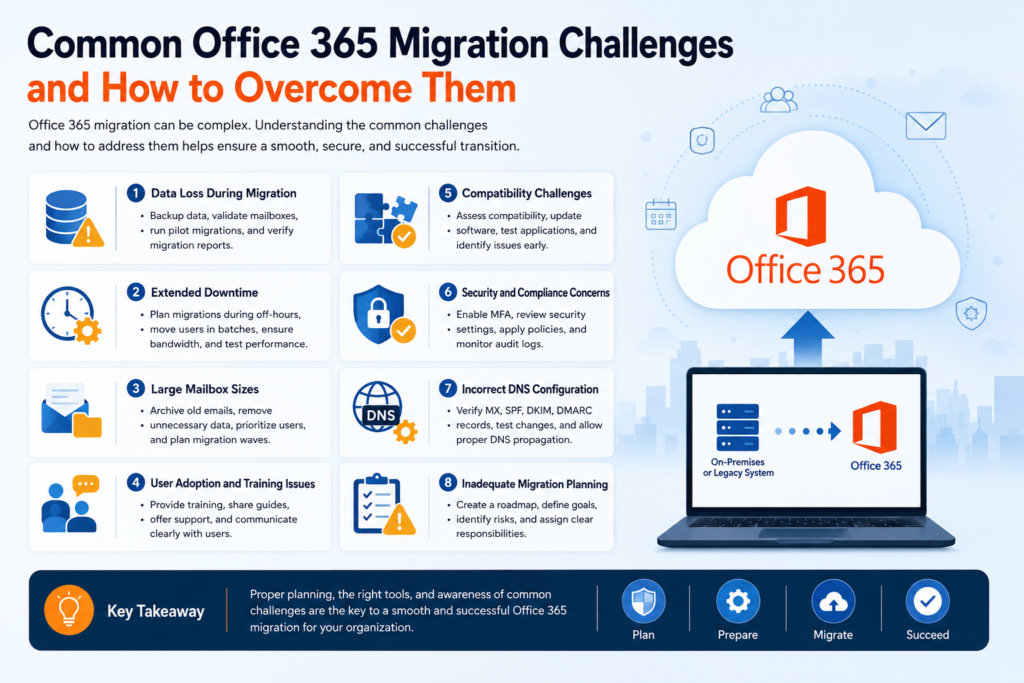
Struggling with your Office 365 migration?
 Complete IT Pro Guide
Office 365 Migration:
Everything You Need to Know
 June 2026 |
  12 min read |
  IT Professional |
  Microsoft 365
Planning an Office 365 migration? Whether you’re migrating from Exchange Server, Google Workspace, IMAP platforms, or performing a tenant-to-tenant migration after a merger or acquisition, this comprehensive guide covers planning, migration methods, prerequisites, execution, and post-migration best practices for a successful transition to Microsoft 365.
 Try EdbMails Migration Tool Free
Migrating to Microsoft 365 is one of the most important modernization projects organizations undertake to improve collaboration, security, scalability, and business continuity. However, successful migrations require careful planning, technical preparation, and the right migration strategy to minimize disruption and downtime.
This guide covers every stage of an Office 365 migration, including migration planning, prerequisites, migration methods, workload assessment, execution strategies, validation procedures, and common challenges to help ensure a smooth and successful migration project.
Table of Contents
- What Is Office 365 Migration?
- Migration Types
- Planning Your Migration
- What Gets Migrated?
- Step-by-Step Migration Process
- Common Migration Mistakes
- Why Choose EdbMails?
- Pricing
- Frequently Asked Questions
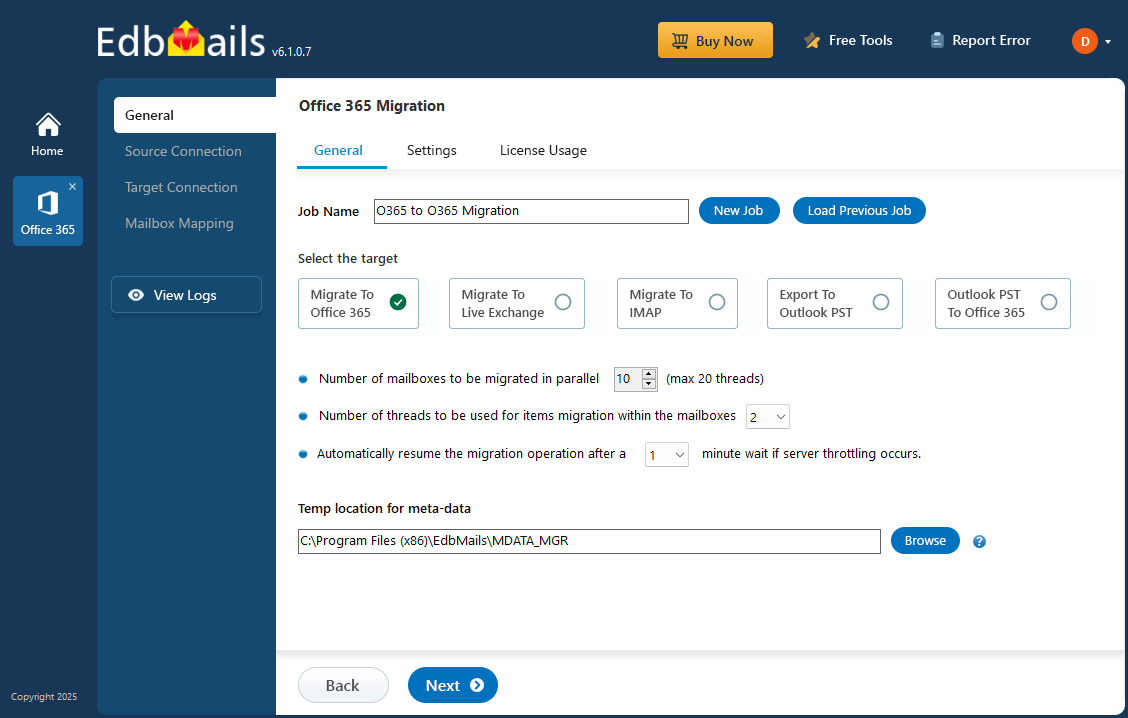
▲ A complete overview of the Office 365 migration process
What Is Office 365 Migration?
Microsoft 365 Migration (formerly Office 365 migration) is the process of moving business data and workloads such as mailboxes, public folders, archives, contacts, calendars, shared mailboxes, Microsoft 365 Groups, SharePoint sites, OneDrive accounts, and Microsoft Teams data into Microsoft 365 or between Microsoft 365 tenants. Organizations commonly migrate from on-premises Exchange servers, Google Workspace, IMAP-based platforms, or legacy email systems to take advantage of cloud-based collaboration and security features.

Tenant-to-Tenant
Migrating mailboxes, OneDrive accounts, SharePoint sites, Teams, and permissions between two Microsoft 365 tenants, commonly required after mergers, acquisitions, or business restructuring.

Exchange Server to Microsoft 365
Migrating mailboxes, public folders, archives, contacts, and calendars from on-premises Exchange Server versions such as 2010, 2013, 2016, and 2019 to Microsoft 365 Exchange Online.

PST Import
Bulk importing legacy PST archive files directly into Office 365 mailboxes.

IMAP / G Suite
Migrating email data from Google Workspace, Gmail, Zimbra, Zoho Mail, cPanel, IceWarp, Kerio Connect, and other IMAP-compatible email systems to Microsoft 365.
 Key Insight
Tenant-to-tenant migrations are the most complex — they involve identity management, DNS changes, and cross-tenant permission challenges. Plan for at least 2–4 weeks of prerequisite work before your first wave.
Migration Types: Which One Is Right for You?
Understanding which migration method fits your organization is the first decision you need to make.
| Migration Type | Best For | Downtime Risk | Complexity |
|---|---|---|---|
| Cutover Migration | Small orgs (<150 users) | Low | Low |
| Staged Migration | Large orgs, phased rollout | Minimal | Medium |
| Hybrid Migration | Orgs keeping some on-prem | None | High |
| Tenant-to-Tenant | Mergers & acquisitions | None | Very High |
| IMAP Migration | Non-Exchange mail servers | Low | Low–Medium |

Planning Your Migration: The Non-Negotiables
Inventory Everything First
Document every mailbox, shared mailbox, distribution list, Microsoft 365 Group, public folder, Teams channel, SharePoint site, OneDrive account, room mailbox, and equipment mailbox before starting the migration. Know exactly what you’re moving before you start moving anything.
Resolve Identity Conflicts Early
If you’re doing a tenant-to-tenant migration, identity mapping is where most projects go wrong. Identify naming conflicts — duplicate display names or email addresses — and resolve them before migration scripts run, not during.
 Common Pitfall
Changing a user’s UPN invalidates cached Outlook mobile credentials, breaks Power Automate flows, and disrupts service accounts. Map all dependencies before you rename anything.
Run a Pilot Before the Full Migration
Select a representative group of users from different departments, business units, and mailbox sizes to validate migration performance, permissions, and user experience before the production migration begins.
Include IT staff, executives, sales teams, and support teams in the pilot migration and migrate them end-to-end first.
A properly planned pilot migration typically uncovers up to 80% of migration issues before they impact the wider organization.
What Gets Migrated? Full Checklist
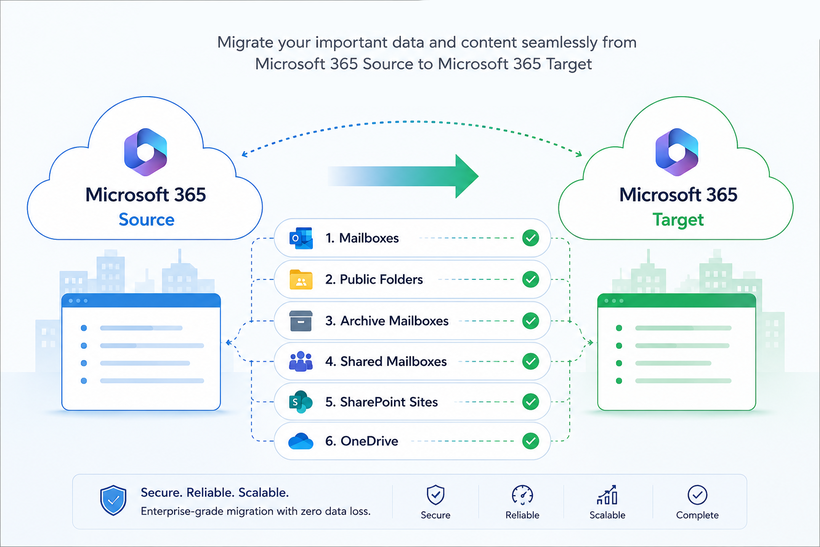

Mailboxes
Emails, folders, contacts, calendars, tasks, notes, categories, attachments, and mailbox metadata can be migrated while preserving folder hierarchy and item properties.

Public Folders
Full folder hierarchy, mail-enabled folders, and permissions migrated intact.

Archive Mailboxes
In-Place Archives move with the primary mailbox or as a separate migration job.

Shared Mailboxes
Shared mailbox contents, permissions, delegates, and folder structures can be migrated while maintaining access for authorized users.

SharePoint Sites
Documents, lists, files, and folder structures across all site collections.
OneDrive
User files, folder structures, permissions, metadata, and shared documents can be migrated to OneDrive for Business with minimal disruption to end users.
Step-by-Step Migration with EdbMails
Here is how a professional Office 365 migration runs from start to finish using EdbMails — no PowerShell required at any stage.
 Pro Tip
Always take a snapshot of the source environment before each migration wave. If anything goes wrong, you can restore to a known good state without re-running an 18-hour migration from scratch.
Ready to Start Your Migration?
EdbMails handles mailboxes, public folders, SharePoint, OneDrive, and Teams — all in one tool. Try free with up to 30 items per folder, no credit card required.
 View Pricing
Top 5 Migration Mistakes to Avoid
1. Starting Identity Planning Too Late
Naming collisions between tenants are painful to fix mid-migration. Build your name-collision matrix in Week 1 and get sign-off on the naming convention before writing any scripts.
2. Not Warning Users About Teams Chat History
Certain Microsoft Teams components, including private chats, reactions, and some application data, may have migration limitations depending on the migration method and available Microsoft APIs. Microsoft’s data model does not expose the necessary APIs. Warn users at least 2 weeks before their cutover date.
ImportantExport critical Teams chats to PDF for compliance before migration. Communicate this limitation clearly — discovering it after cutover damages user trust in the entire project.
3. Ignoring OneDrive Sharing Links
Every sharing link sent from OneDrive becomes a dead link after migration. Run a sharing-link extraction script 48 hours before each wave and email each user a personal re-share report.
4. Touching the Source During a Migration Window
Never run admin commands or cleanup scripts against the source mailbox while the migration tool is running. Changing item counts mid-run can cause mass deletions to be replicated to the target.
5. Skipping the Pilot
A pilot with 10–12 representative users will surface most migration issues before they affect hundreds of people. This is not optional — it is the most valuable diagnostic step in the project.
Choosing the Right Office 365 Migration Tool
| Feature | EdbMails | Microsoft Native | Other Tools |
|---|---|---|---|
| No PowerShell required | ✓ Yes | ✗ No | Varies |
| Concurrent migration (up to 20x) | ✓ Yes | ✗ Limited | Some |
| Incremental / delta migration | ✓ Automatic | ✗ Manual | Some |
| Auto mailbox creation & licensing | ✓ Yes | ✗ Manual | Some |
| All workloads in one tool | ✓ Yes | ✗ Separate | Varies |
| Pricing | Visit the pricing page for the latest licensing and subscription options. | Included | Per-user/month |
| 24/7 free support | ✓ Yes | ✗ Limited | Paid plans |
EdbMails delivered exactly what it promised. I was able to transfer over 200 mailboxes from Zimbra to Office 365. Quick assistance, good value, and reasonable pricing. Absolutely nothing to fret.
I successfully migrated over 100 GB of data across 100 mailboxes concurrently. Combined with the auto-mapping feature, EdbMails is my top choice for Microsoft 365 migrations.
Simple, Transparent Pricing
Unlike subscription tools that charge monthly per user, EdbMails uses a one-time per-mailbox model. You only pay for the mailboxes you actually migrate — no recurring fees.
Office 365 Migration License
- ✓ Unlimited migration runs per license
- ✓ Mailboxes, public folders, archives, shared mailboxes
- ✓ Concurrent migration of up to 20 mailboxes
- ✓ Incremental (delta) migration included
- ✓ Auto mailbox creation and license assignment
- ✓ 24/7 free technical support
- ✓ Lifetime license — no subscription
Frequently Asked Questions
How long does a Microsoft 365 migration take?
A Microsoft 365 migration can take anywhere from a few hours to several weeks depending on mailbox sizes, internet bandwidth, and the number of users being migrated.
Can Microsoft 365 migration be performed without downtime?
Yes. Using staged, hybrid, or incremental migration methods can significantly reduce or eliminate downtime for end users.
What data can be migrated to Microsoft 365?
Email messages, calendars, contacts, public folders, archives, shared mailboxes, SharePoint sites, OneDrive files, and Microsoft Teams data can be migrated.
What is the difference between cutover and hybrid migration?
Cutover migration moves all users at once, whereas hybrid migration allows organizations to maintain coexistence between on-premises Exchange and Microsoft 365.
Is tenant-to-tenant migration supported by Microsoft?
Microsoft provides limited native capabilities, but third-party tools are typically required for complete migrations involving mailboxes, OneDrive, SharePoint, and Teams.
Can Microsoft Teams chats be migrated?
Teams chats have migration limitations because Microsoft does not expose complete APIs for chat migration between tenants.
What is incremental migration?
Incremental migration transfers only newly created or modified items after the initial migration, reducing bandwidth consumption and preventing duplicates.
What permissions are required for migration?
Global Administrator permissions are typically required for tenant migrations, while mailbox-level permissions may be sufficient for smaller projects.
Conclusion
Microsoft 365 migration projects are most successful when organizations invest sufficient time in planning, testing, validation, and communication with end users.
Whether you are migrating from Exchange Server, Google Workspace, IMAP platforms, or another Microsoft 365 tenant, choosing the right migration strategy and migration tools can dramatically reduce downtime, complexity, and project risk.
By following best practices and using proven migration solutions, organizations can ensure a smooth transition to Microsoft 365 while maintaining business continuity throughout the migration process.
Related Articles
- Exchange Migration Software Validation Checklist
- Google Workspace Migration Guide
- IMAP Migration to Microsoft 365
- Email Signature Management
- Microsoft 365 Articles
Microsoft 365
Tenant-to-Tenant
Exchange Online
SharePoint Migration
EdbMails
IT Pro
OneDrive
Microsoft Teams
Migrate Smarter, Not Harder
EdbMails handles the complexity so your team doesn’t have to. From 10 mailboxes to 10,000 — fast, secure, and duplicate-free.
 Visit EdbMails Office 365 Migration Tool
Learn more about Office 365 migration solutions and industry best practices for Exchange Server, Microsoft 365 tenant-to-tenant, IMAP, and PST migrations.
© 2026 hrstechs · Rehoboth Beach, Delaware, United States